
The Compute Variable function in SPSS allows you to create new variables based on mathematical calculations, logical conditions, or transformations of existing data. This feature is useful for deriving new insights, such as computing total scores, averages, or custom indices. You can apply arithmetic operations, statistical functions, or conditional logic to modify data efficiently. SPSS provides a user-friendly interface for defining computation formulas without needing complex programming. Learning how to compute variables helps streamline data analysis and enhances the accuracy of your research findings.
Lets discuss some real world research scenarios where compute variable technique could be applied.
Height and Weight variables. Instead of storing BMI manually during data collection, research can compute it using measured variables through the SPSS Compute Variable option. The relevant formula, i.e. BMI = Weight / Height2 could be setup in SPSS after the measured variables have been created and data has been setup.industry experience, teaching experience, and research experience. The total experience could be created through Compute Variable option by calculating the sum of these variables, i.e. Total Experience = Industry + Teaching + Research.Quiz, Assignment, and Final. The average score can be calculated by: Average Score = (Quiz + Assignment + Final) / 3. Similarly, a weighted average formula could be setup as well. Suppose that we want to give 10% weight to Quiz, 30% to Assignments, and 60% to final scores, the weighted average formula will be setup as: Weighted Average Score = (Quiz*0.10 + Assignment*0.30 + Final*0.60). These formulas could be configured in SPSS Compute Variable option once we have the variables ready and data has been input.(highest_score + 1 - neg_question_score). The Compute variable option could also be used to convert units, for instance, from Kilograms to Pounds, from Fahrenheit to Celsius, etc as well. Lets re-consider the survey form that we discussed earlier in our previous topic, i.e. SPSS Data Types and Data Entry.
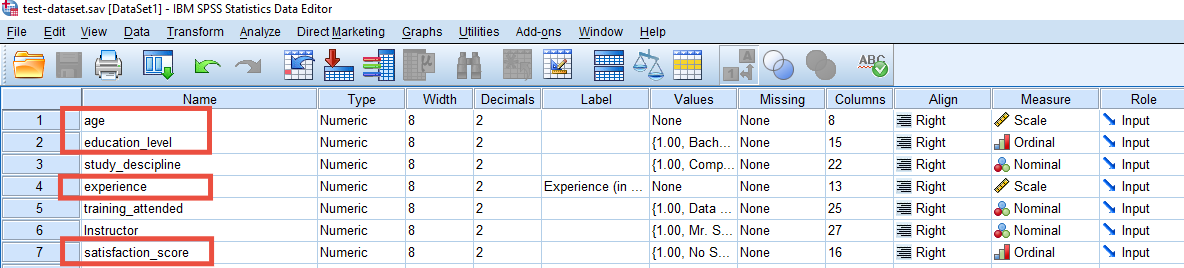
In general the SPSS Compute Variable function could be applied to scale and ordinal variables. In our case, we have two scale variables i.e. age and experience. We also have two ordinal variables, i.e. education_level and, satisfaction_score. Note that, it depends upon the objectives of the study, nature of the problem, or the underlying statistics which are required to be computed from the variables. That decides if you need new variables or not. In our case, in this example, we can consider follow options:
age in months, keeping in view the the age was collected as number of years original. i.e. We want to define a new variable called Age_in_Months, such that: Age_in_Months = Age * 12.Experience-Age Ratio. We want to measure the proportion of a participant's life spent gaining professional experience. It can be useful in workforce or career development studies where researchers compare participants of different ages. So we want to define a new variable Experience_Age_Ratio such that: Experience_Age_Ratio = Experience / Age.I have created two easy-to-follow videos to help you understand its operations better.
Whether it's for your thesis, assignment, or research project, I offer one-on-one guidance and support.
Discover how to recode variables in SPSS. A step-by-step guide for modifying data values.
Discover how to recode variables in SPSS. A step-by-step guide for modifying data values.
Learn to handle missing data in SPSS. A simple tutorial for analyzing and managing missing values.
